Participant Portal User Guide
A step-by-step guide to the portal with real screenshots and numbered markers.
What is the Participant Portal?
The Participant Portal is our e-service platform where companies in the zone handle invoices, payments, parcels, projects, applications and support requests 24/7 with a single account. The numbered markers on each screenshot match the steps below it.
The portal interface is in Turkish; the screenshots show the Turkish screens.
Screenshots were prepared with sample company data.
- Invitation e-mailThe Zone Directorate opens your account.
- Set a passwordSet your password via the link.
- UsersGive your staff access.
- Two-step verificationProtect your account.
Signing in
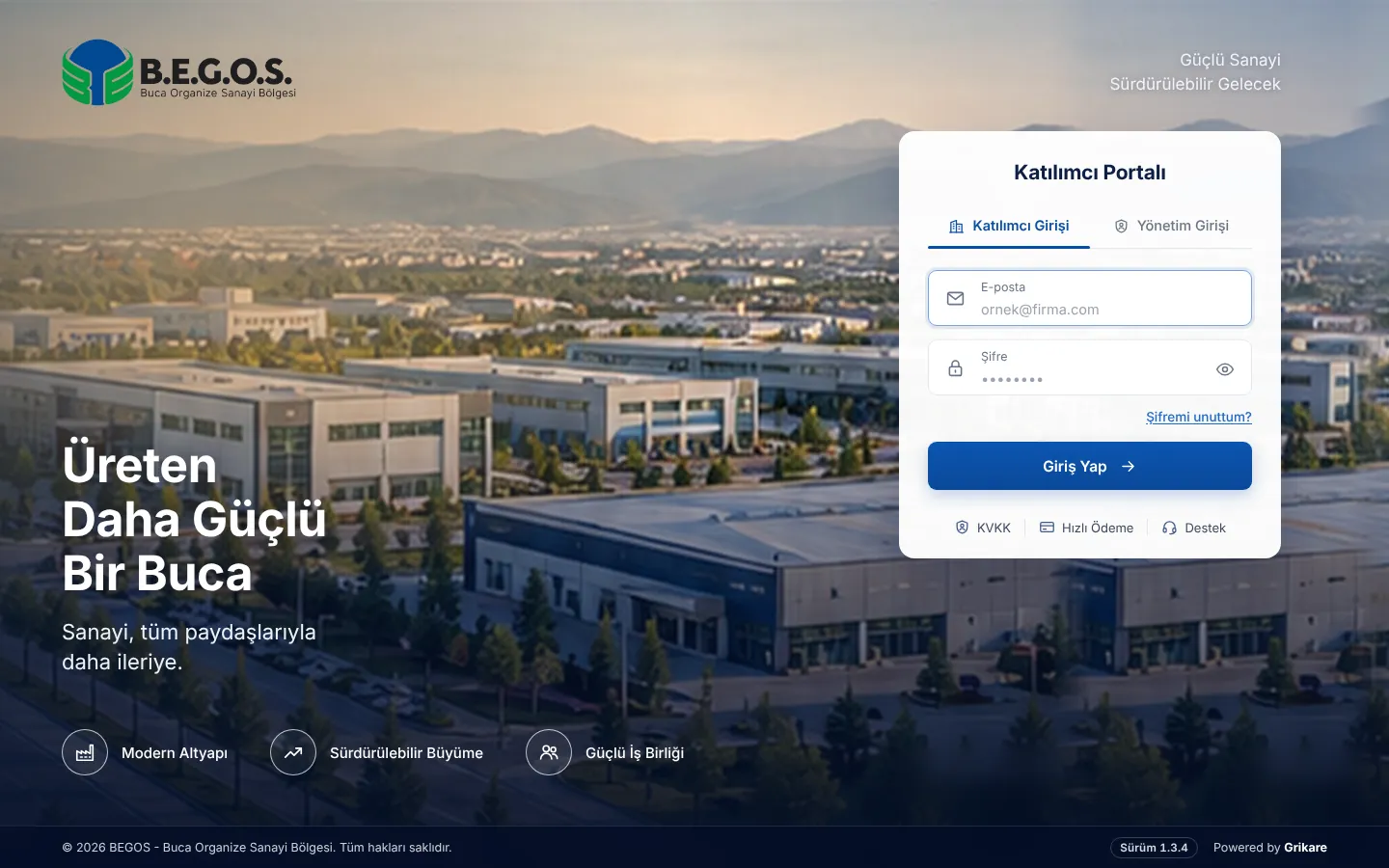
Your account is opened by the Zone Directorate and you set your password with the link in the invitation e-mail. You sign in on this screen afterwards.
 12345
- 1
Enter your e-mail address. The address that received the invitation is your user name.
- 2
Enter your password. Use the eye icon to show what you type.
- 3
If you forgot your password, request a reset link with "Şifremi unuttum".
- 4
Press "Giriş Yap". On a new device you enter the code sent to your phone or e-mail, or the code from your authenticator app if two-step verification is on.
- 5
Without a portal account you can still pay with your tax number via "Hızlı Ödeme".
The "Yönetim Girişi" tab is for Zone Directorate staff; companies use "Katılımcı Girişi".
Dashboard
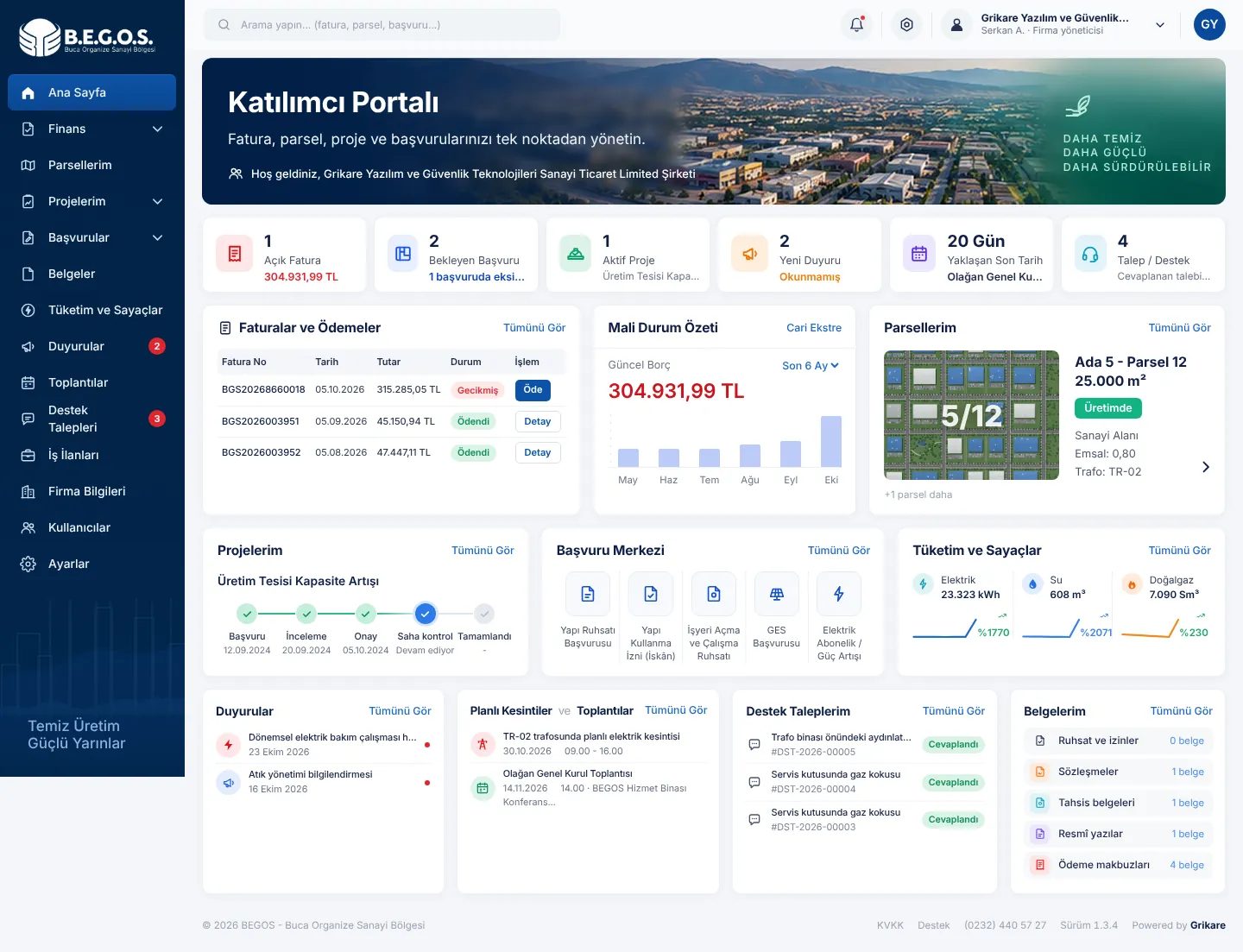
The dashboard summarises the current status of your company on a single screen.
 123456
- 1
Search: find invoices, parcels, applications or requests by number.
- 2
Notifications: replies, approvals, announcements and reminders.
- 3
User menu: account settings and sign out.
- 4
Side menu: all sections. Only the sections you are allowed to use are shown.
- 5
Summary cards: open invoices, pending applications, upcoming deadlines and support requests. Click a card to open the page.
- 6
Panels: latest invoices, financial status, parcels, projects, consumption, announcements and documents.
Invoices and account statement
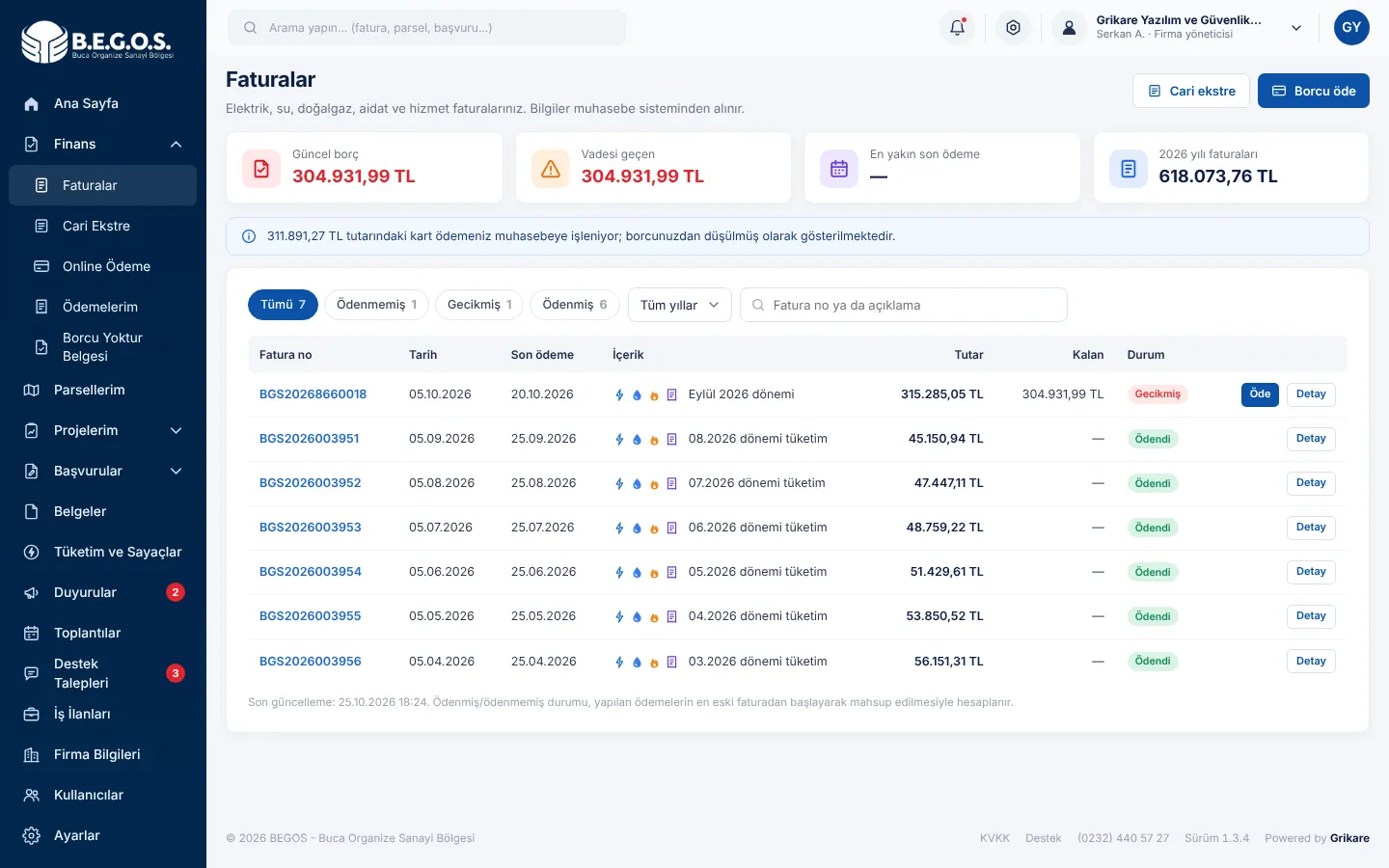
Your electricity, water, gas, dues and service invoices come from the accounting system with their payment status.
 12345
- 1
Filters: unpaid, overdue or paid invoices, by year or invoice number.
- 2
"Öde": pay just this invoice by card.
- 3
"Detay": invoice lines, consumption details and the PDF invoice.
- 4
"Borcu öde": pay your whole balance at once.
- 5
"Cari ekstre": debit, credit and balance movements.
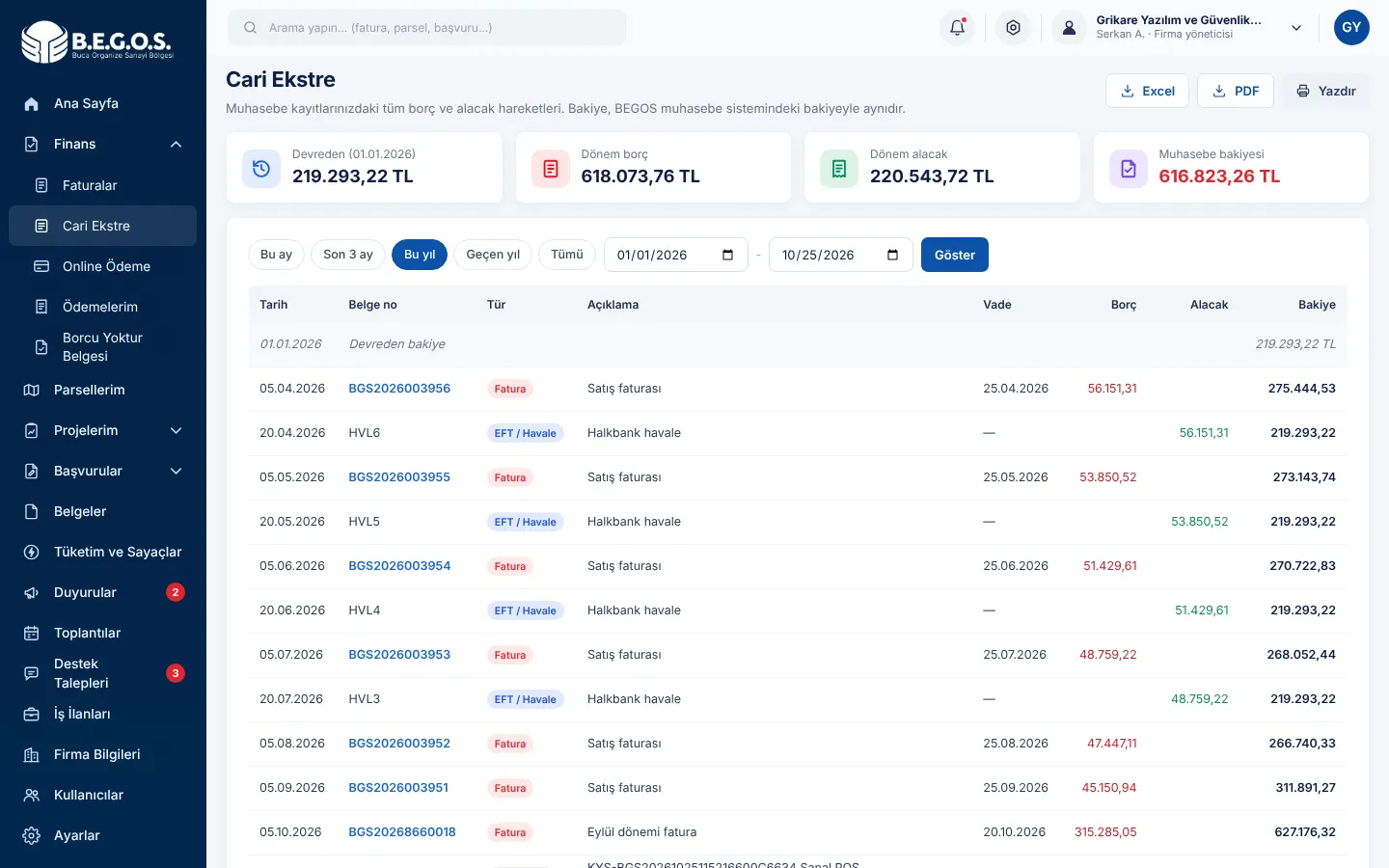 123
- 1
Opening balance, period debit, period credit and current balance.
- 2
Pick a preset period or enter start and end dates.
- 3
Download the statement as Excel or PDF, or print it.
Online payment
Card payments use your bank's 3D Secure verification and are deducted from your balance immediately. A receipt is e-mailed to you.
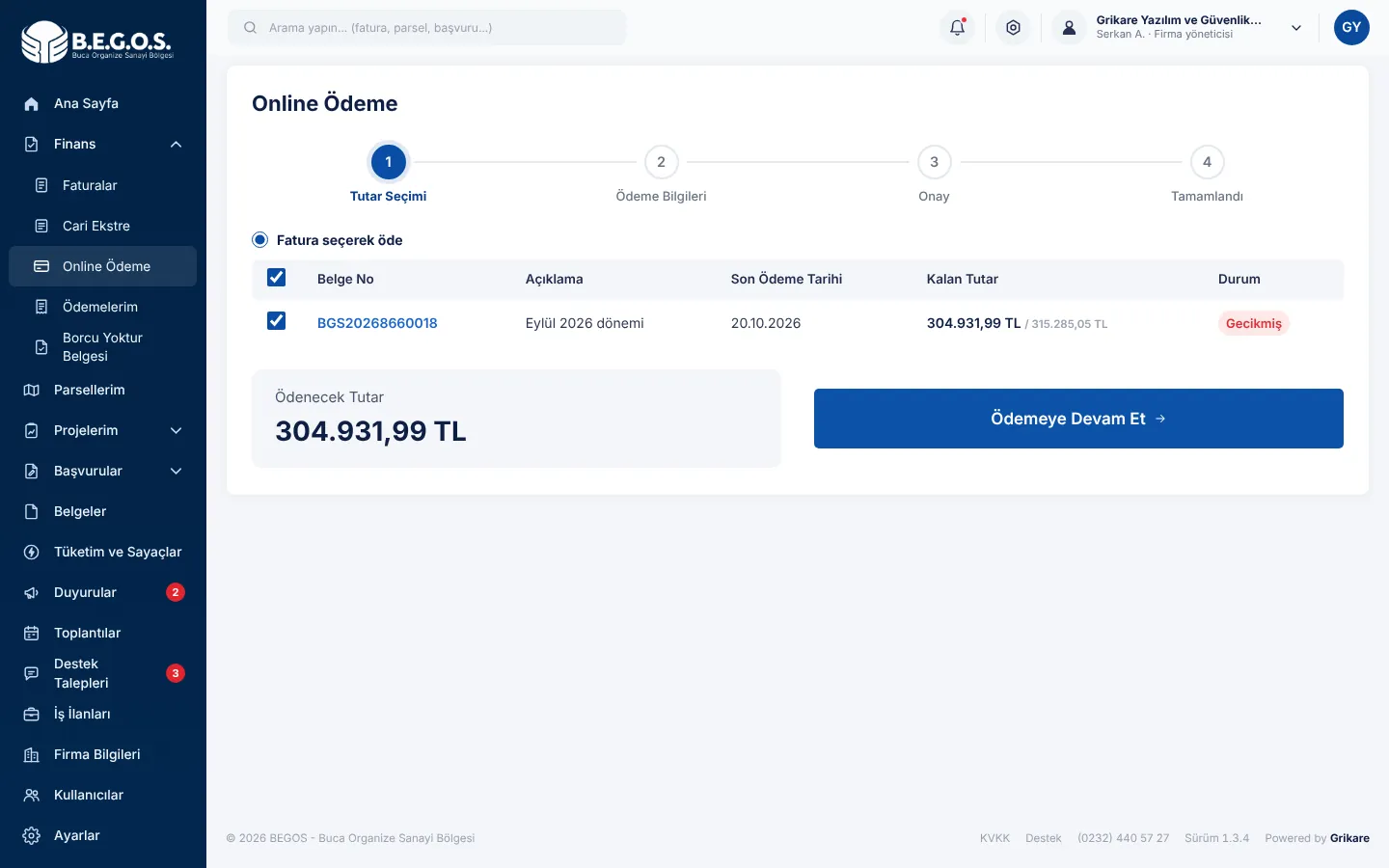 123
- 1
Tick the invoices you want to pay. The oldest due dates come first.
- 2
The amount is calculated from your selection.
- 3
Continue to the payment details.
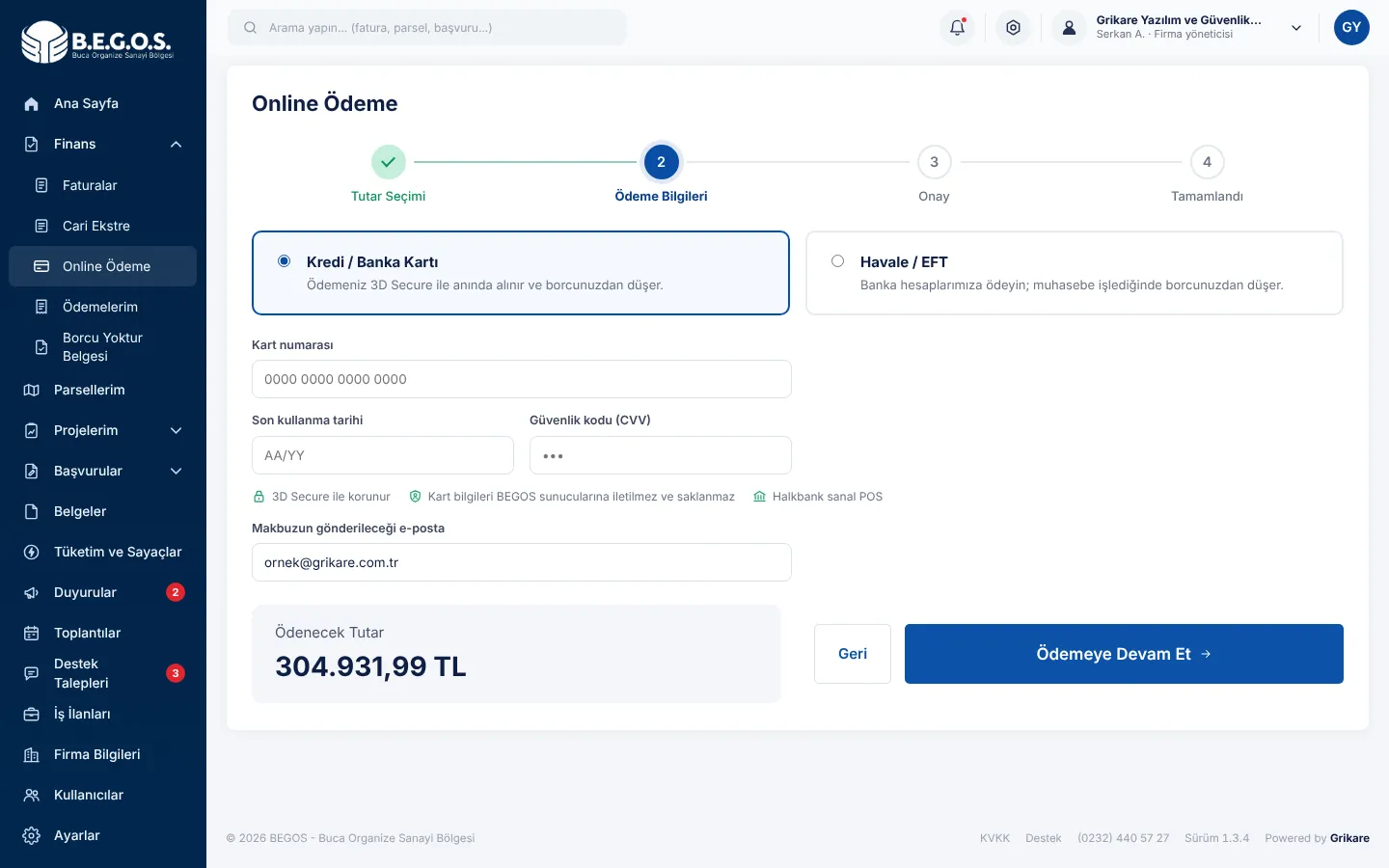 12345
- 1
Choose the method: credit / debit card or bank transfer.
- 2
Enter your card number.
- 3
Enter the expiry date and the security code on the back of the card.
- 4
Card details never reach or stay on BEGOS servers; they go straight to the bank.
- 5
Your bank's verification page opens next; confirm the payment with the code sent to your phone.
For bank transfers, write the company code shown in the portal in the description. Transfers are deducted once accounting records them.
Quick payment (no account)
Companies without an account, or anyone paying on their behalf, can pay by card with the tax number only.
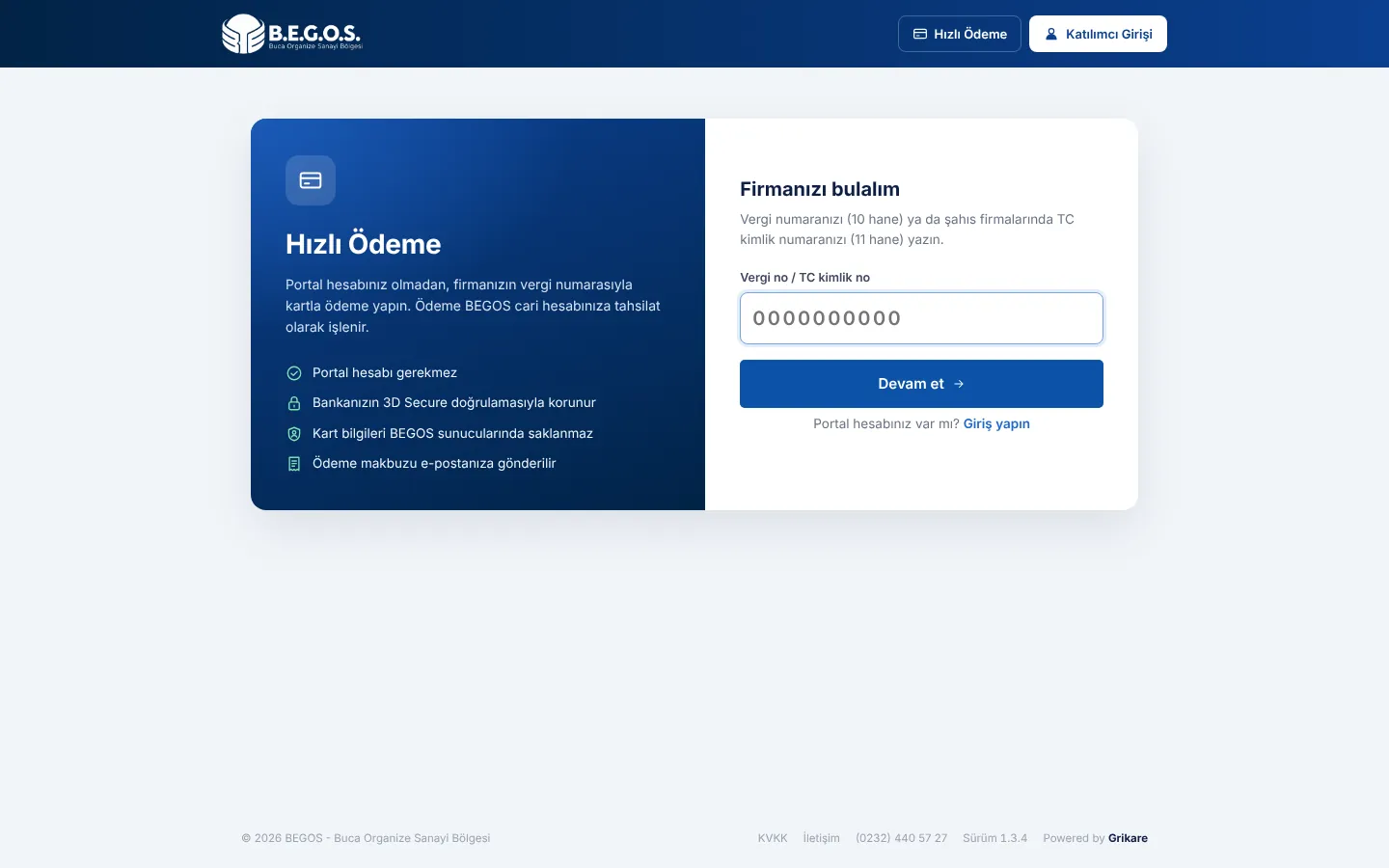 12
- 1
Enter the company's tax number (10 digits) or, for sole proprietors, the national ID number (11 digits).
- 2
Press "Devam et" to list open balances, choose the amount and pay by card. The receipt is sent to the e-mail you enter.
No-debt letter and e-document verification
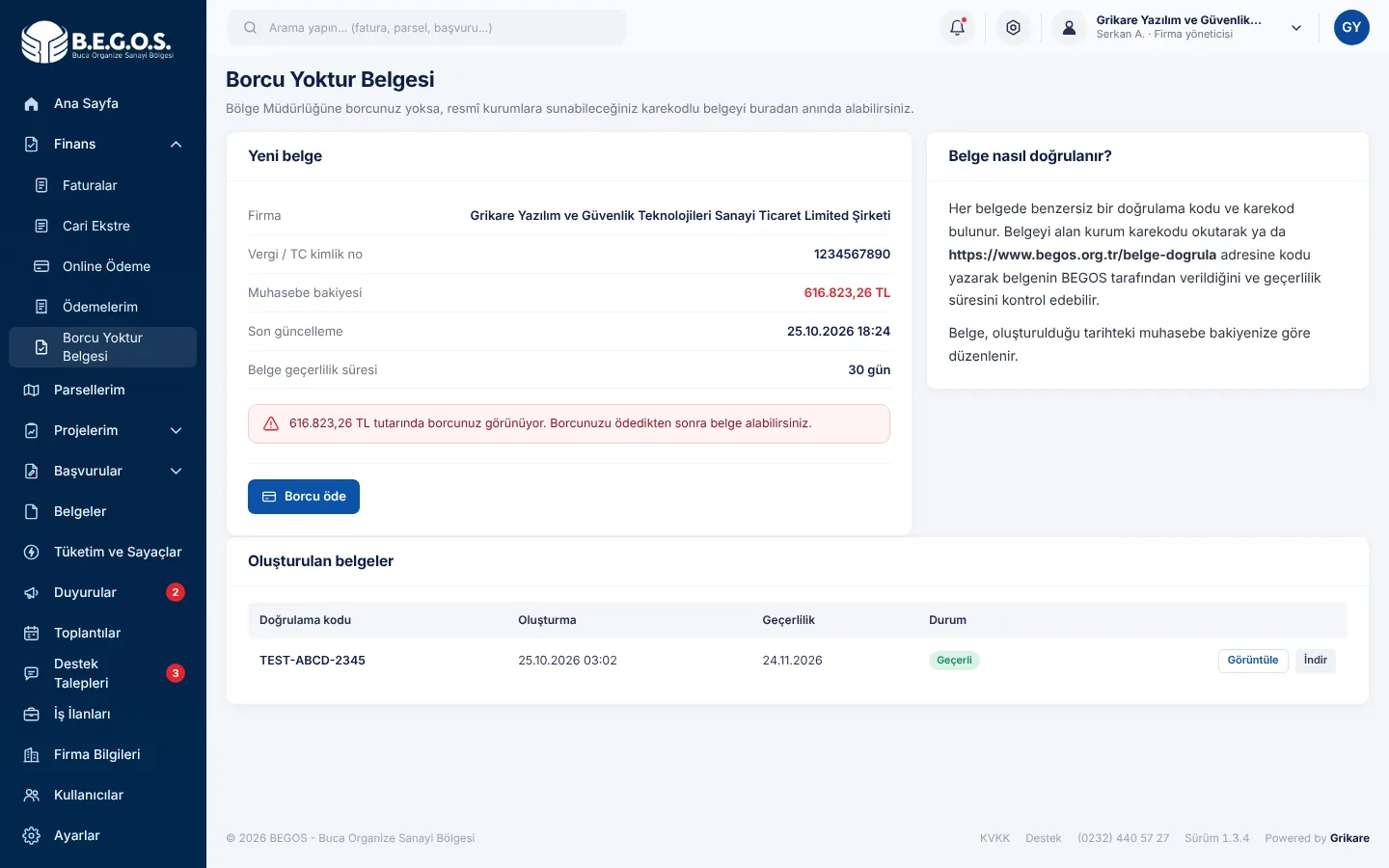
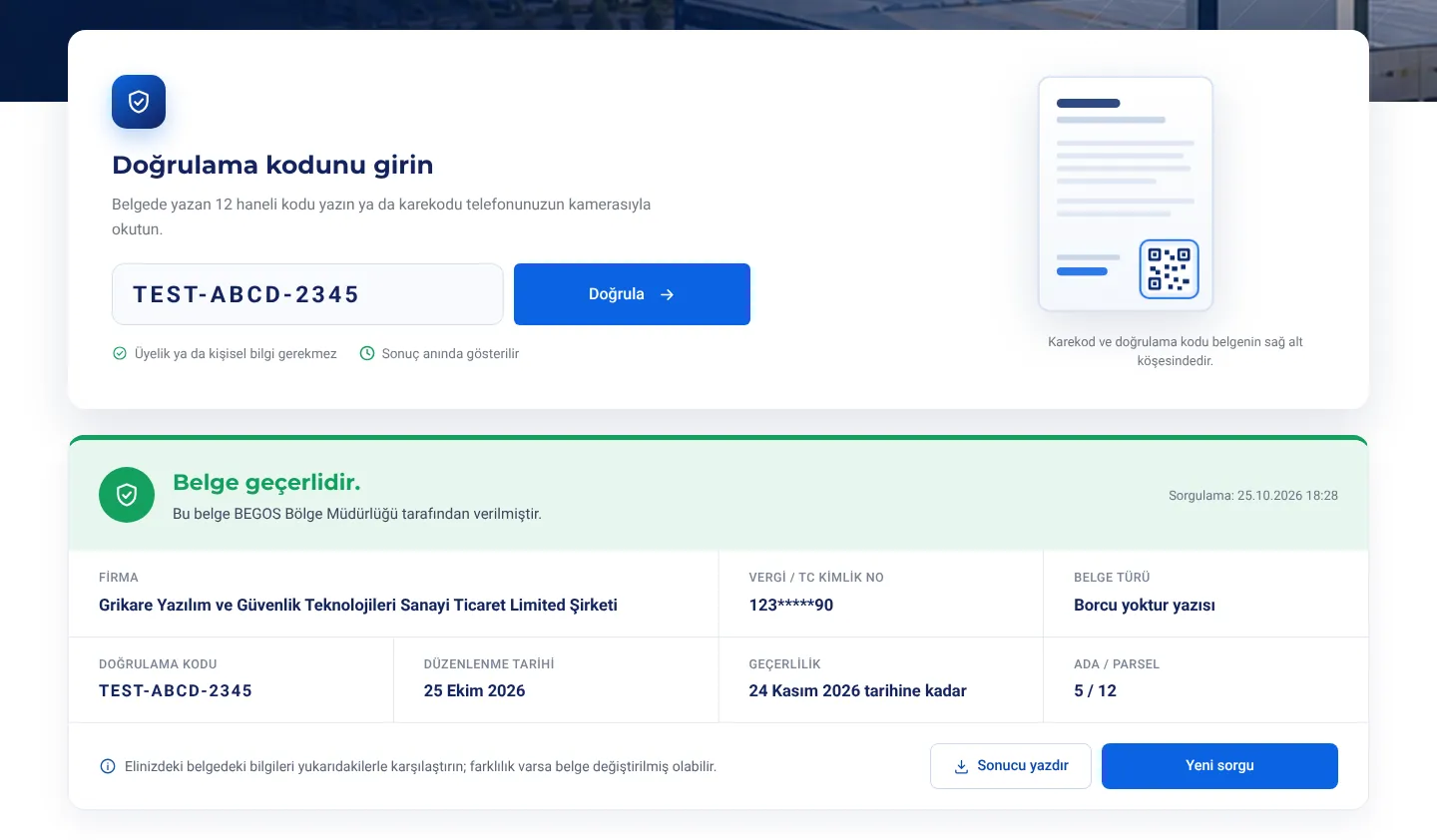
Companies without debt get a no-debt letter instantly. It carries a QR code and a 12-character code that recipients can verify on our website.
 123
- 1
New letter: created in one click if you have no debt; otherwise pay first.
- 2
How the letter is verified and how long it is valid.
- 3
Your letters: view and download as PDF and follow their validity.
 1234
- 1
Enter the 12-character code on the document or scan the QR code with a phone camera.
- 2
Result: clearly states whether the document is valid, expired or cancelled.
- 3
Compare company, tax number, date and validity with the document you have.
- 4
Print the result or start a new check.
Parcels and projects
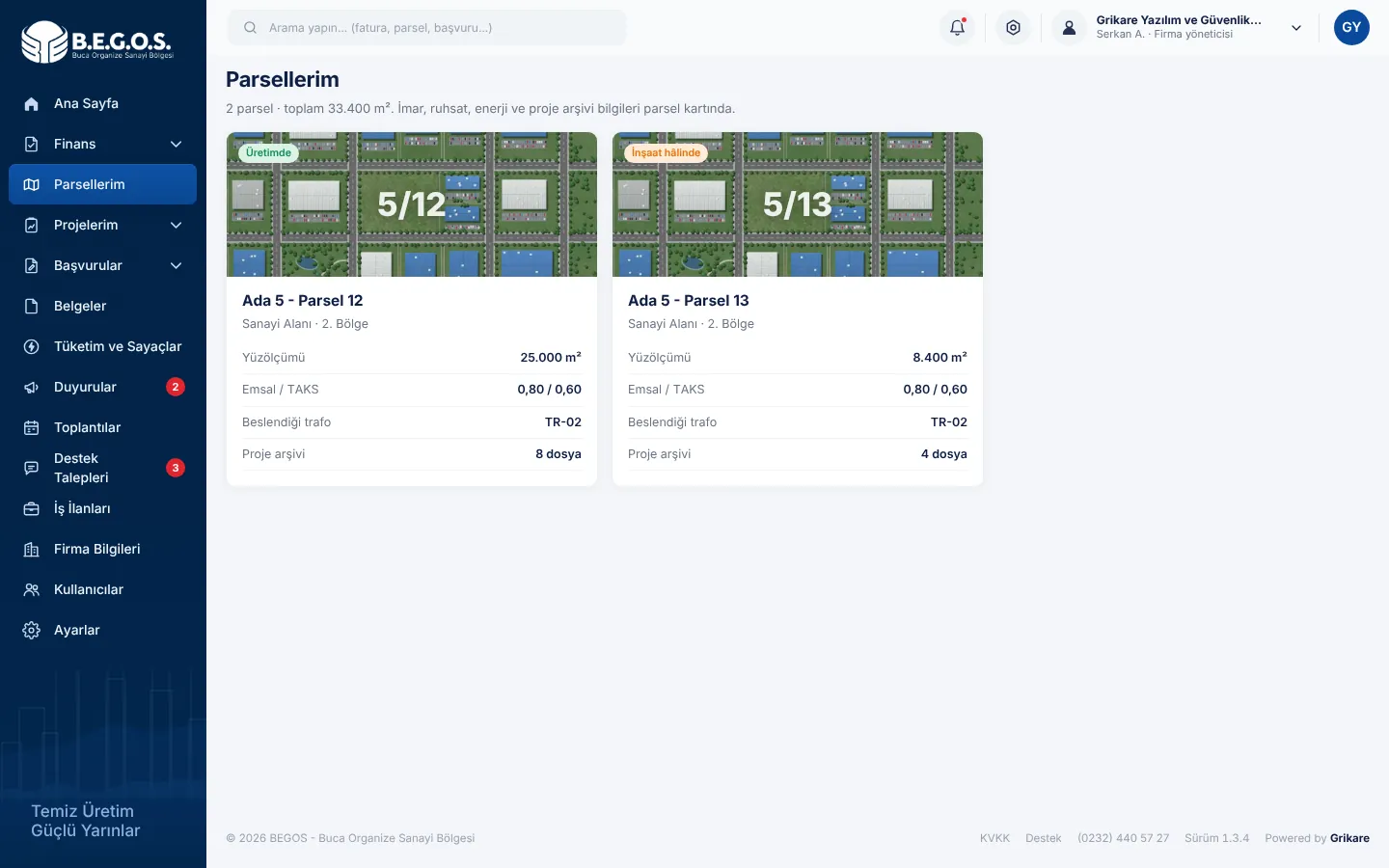
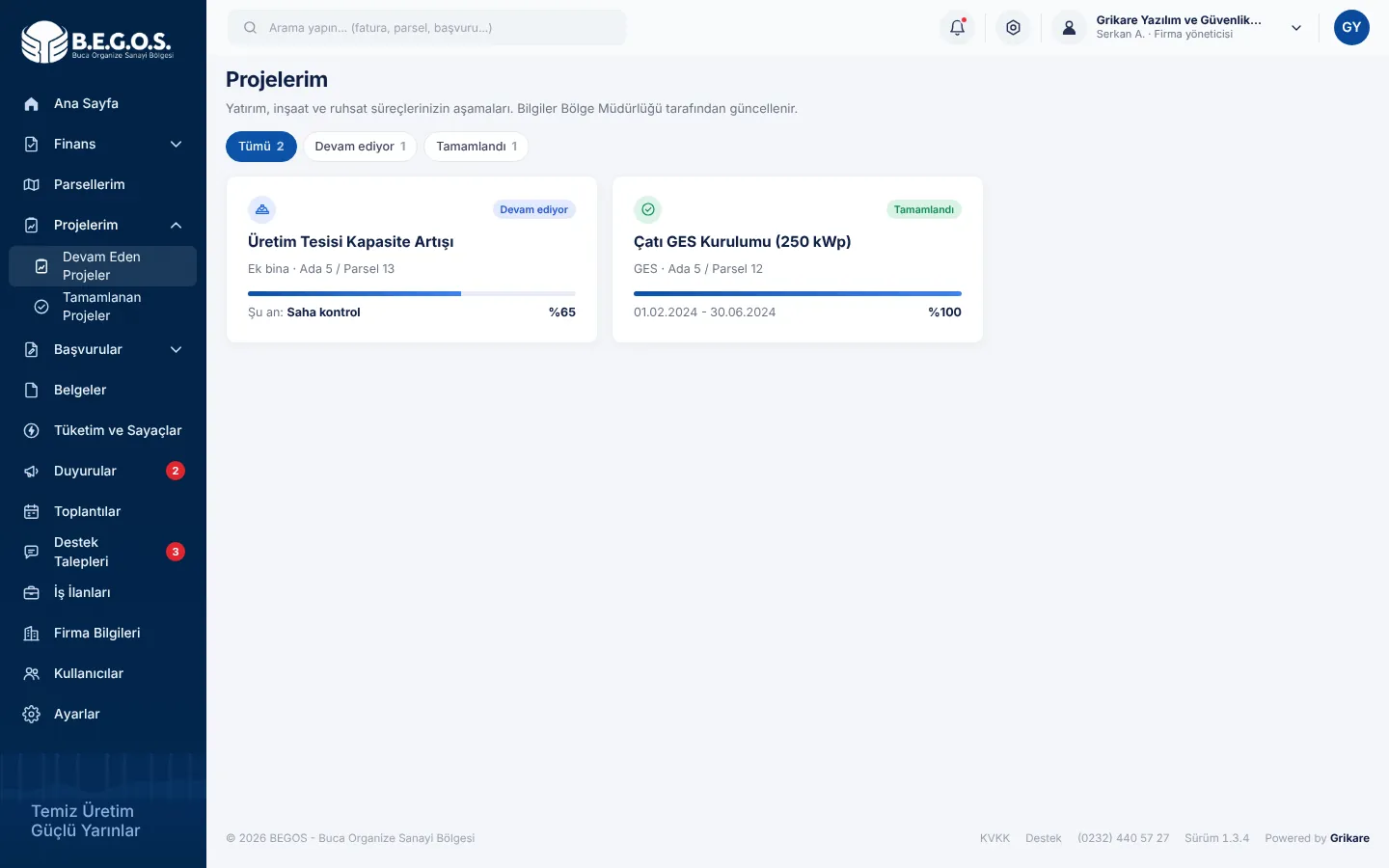
Zoning, permit and infrastructure details of your parcels, your project archive and step-by-step tracking of ongoing work.
 1
- 1
Parcel card: block / parcel, area, floor ratio and supplying transformer. Click it for zoning, permits, utility connections and the parcel's project archive.
 12
- 1
Filter ongoing and completed projects.
- 2
Project card: current stage and progress. Details include stage dates and documents.
Applications
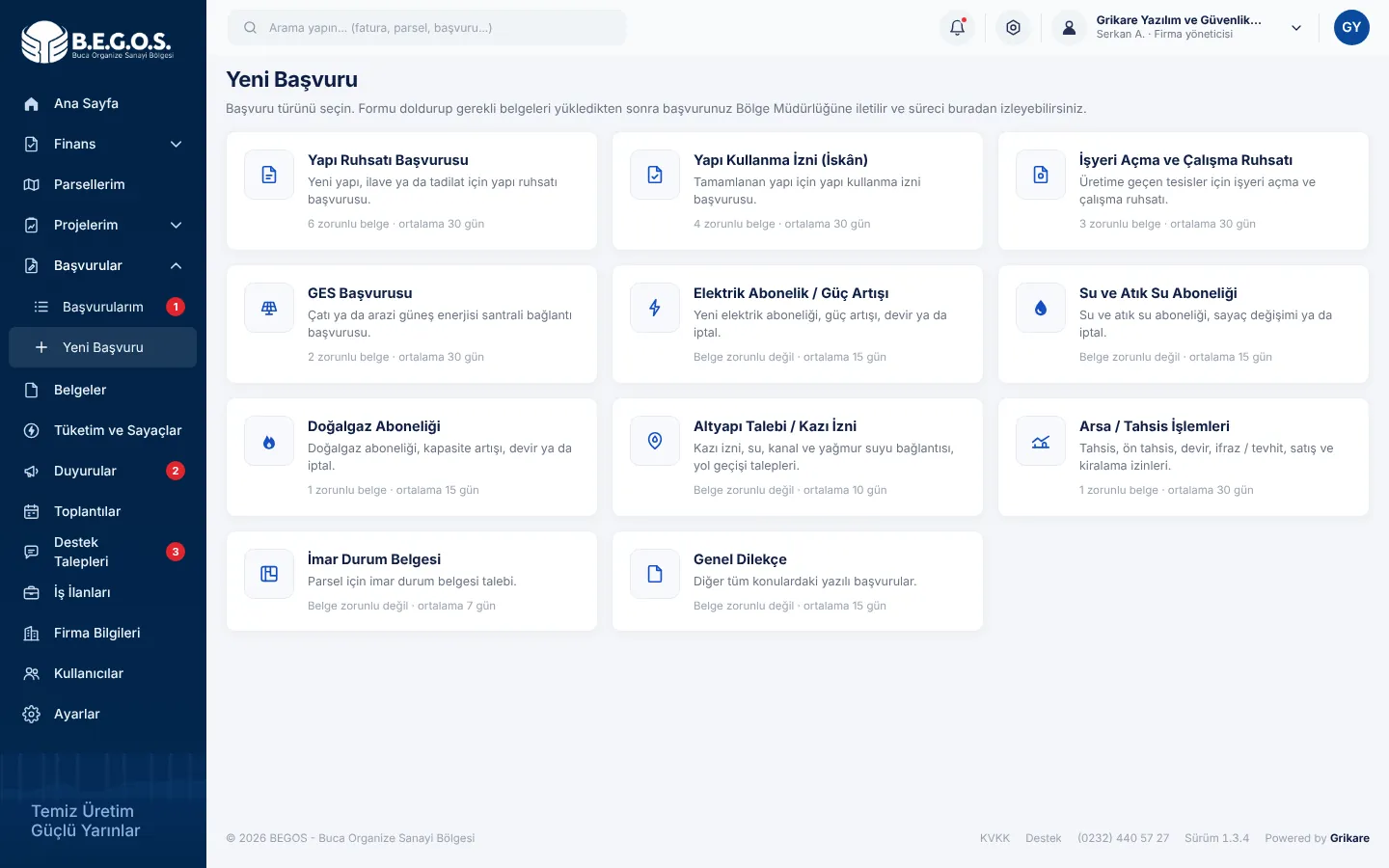
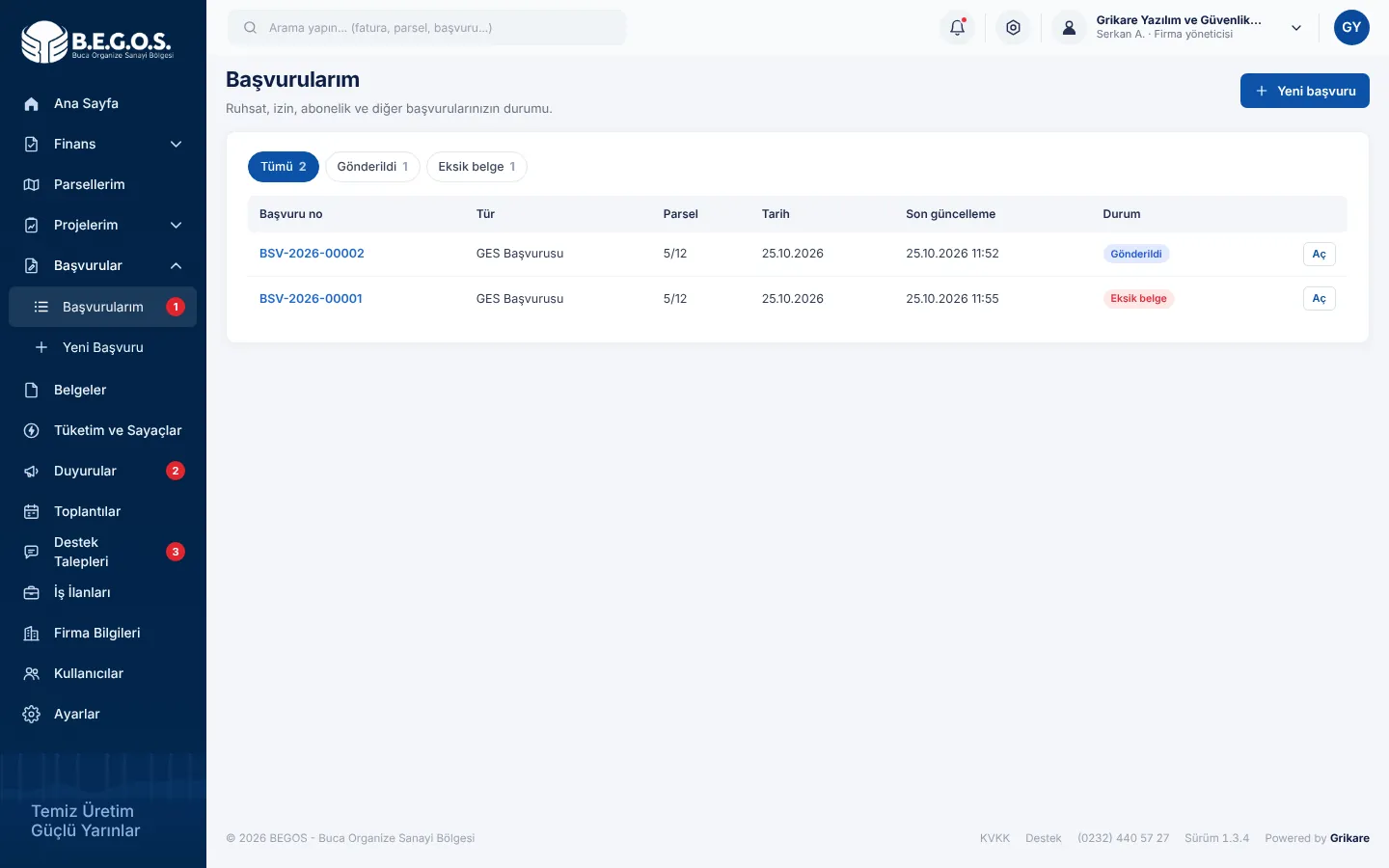
Submit permit, licence, subscription and petition applications with their documents and follow the outcome.
 1
- 1
Choose the application type. Each card shows the required documents and expected duration. Then fill in the form, upload the documents and submit.
 123
- 1
Create a new application.
- 2
Filter by status; applications marked "Eksik belge" are waiting for documents from you.
- 3
Open an application to see its history and messages and to upload missing documents.
Support requests
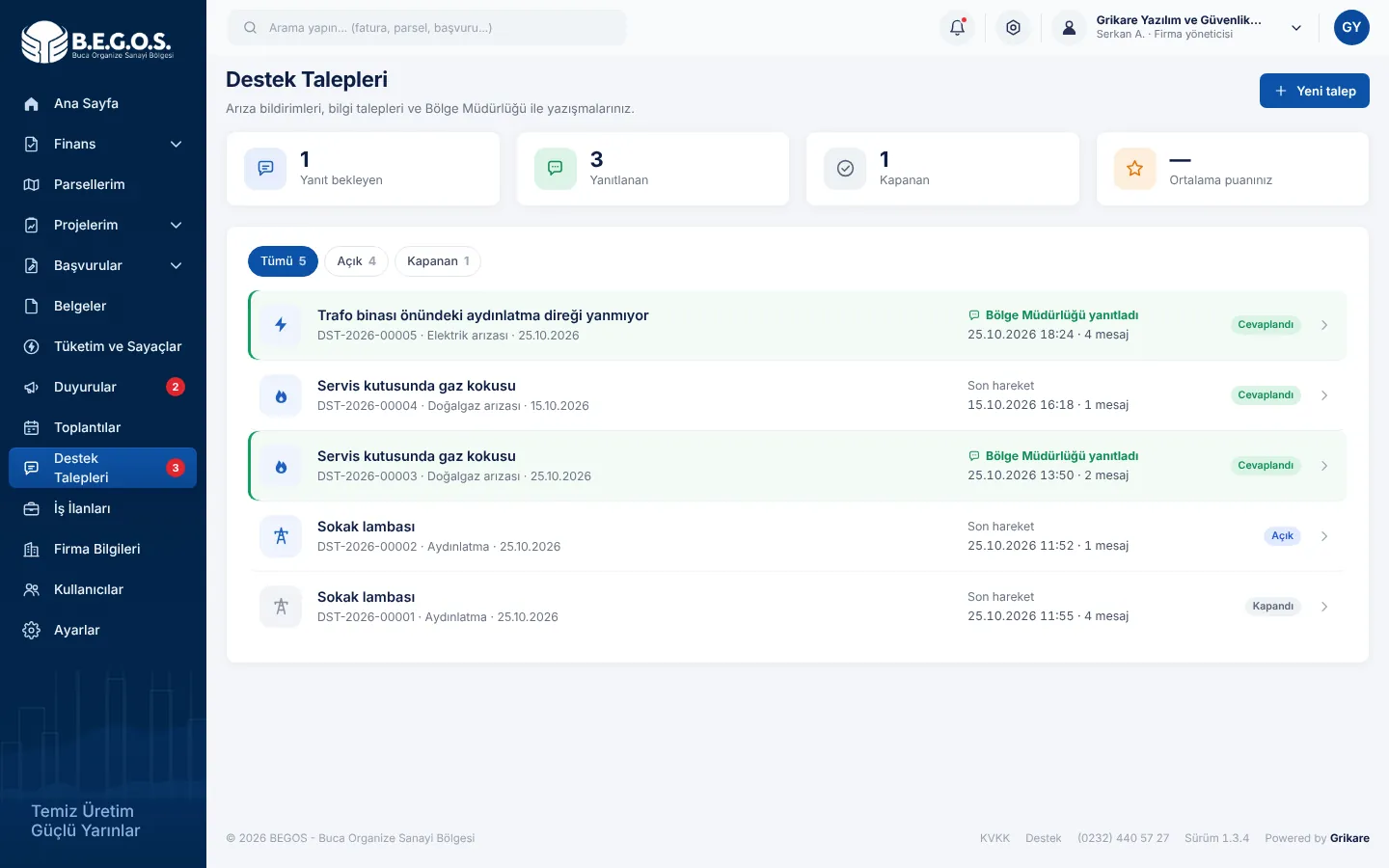
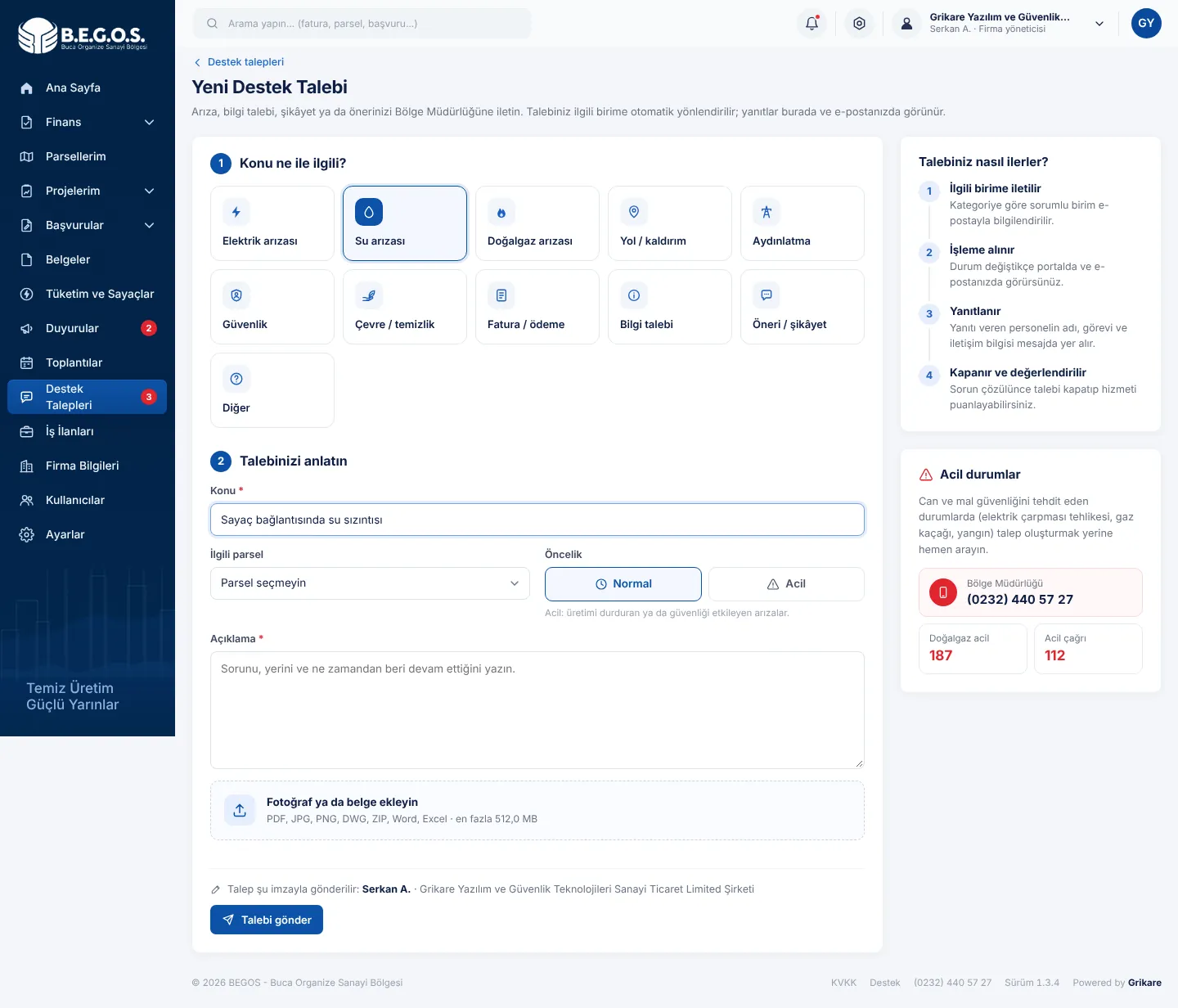
Faults, questions, suggestions and complaints are routed to the relevant unit by category. Every message is signed: with your name and company, and replies with the staff member's name, title and contact details.
 1234
- 1
Create a request with "Yeni talep".
- 2
Summary: requests awaiting a reply, answered and closed, and your average rating.
- 3
Filter open and closed requests.
- 4
Request row: green rows have a new reply from the Zone Directorate.
 12345
- 1
Choose the category; the request goes to the relevant unit automatically.
- 2
Write a short subject and pick the related parcel if any.
- 3
Priority: choose "Acil" only for faults that stop production or affect safety.
- 4
Attach photos or documents; they help a lot.
- 5
"Talebi gönder": the request is signed with your name and company name.
In emergencies (gas leak, fire, risk of electric shock) call immediately instead of opening a request.
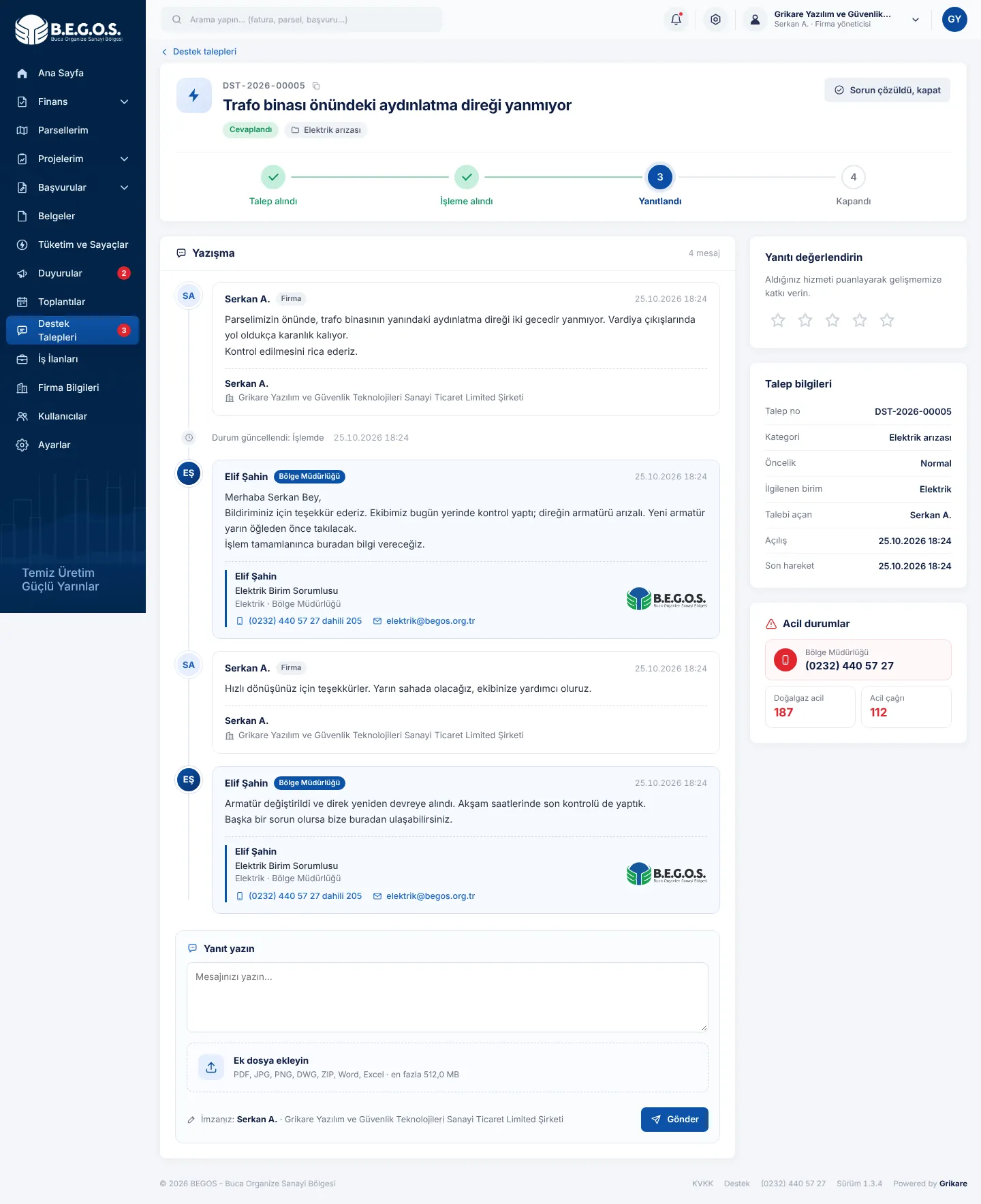 123456
- 1
Status steps: received, in progress, answered, closed.
- 2
Your messages: signed with your name and company name.
- 3
Zone Directorate replies: the staff member's name, title, unit, phone and e-mail appear in the signature so you can reach them directly.
- 4
Write a reply and attach files. Writing to a closed request reopens it.
- 5
Rate the service from 1 to 5 stars.
- 6
Close the request once your issue is solved.
Documents, consumption and updates
Digital copies of contracts, allocation documents and official letters, consumption history, announcements, planned outages and meetings.
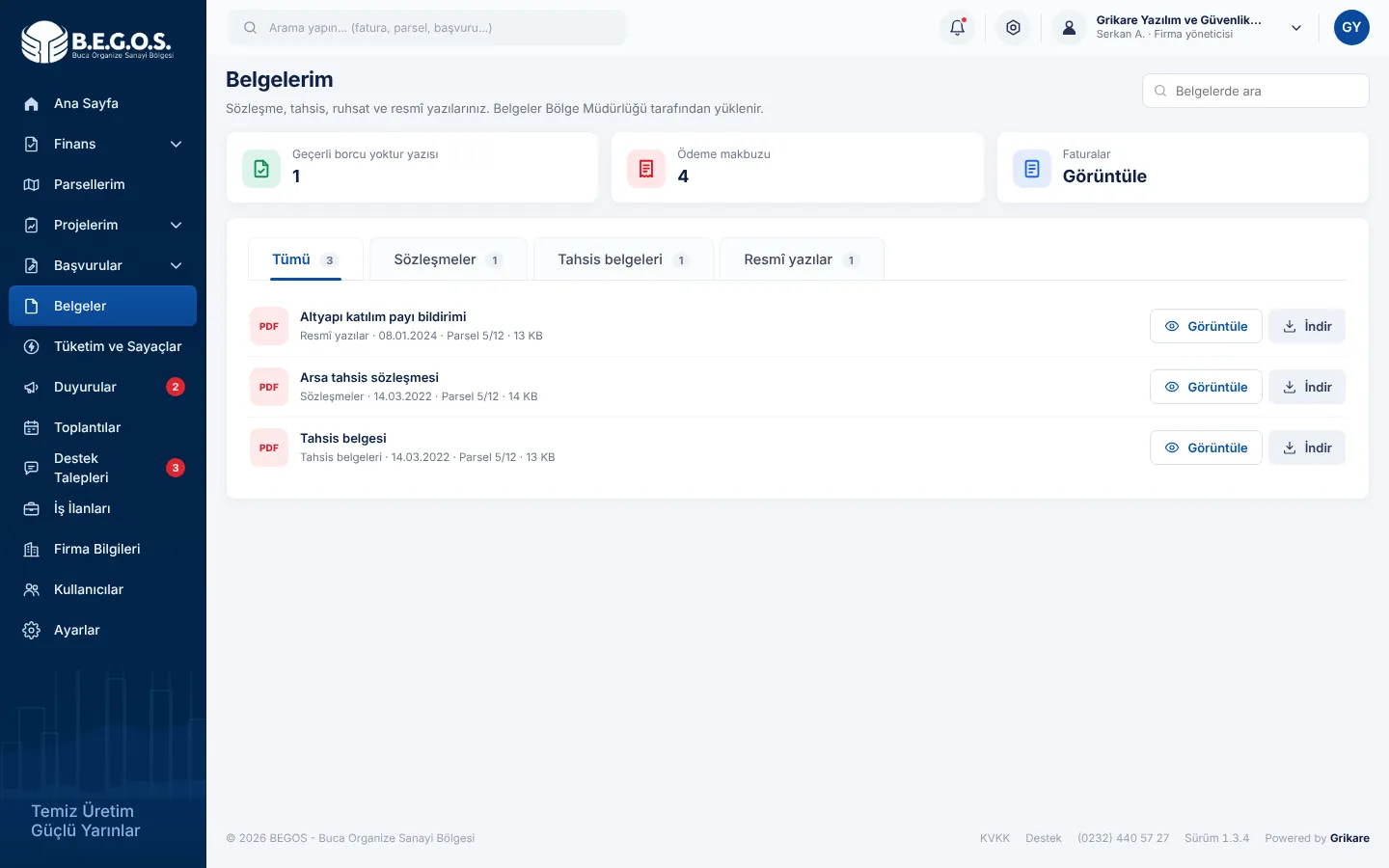 123
- 1
Tabs by type: contracts, allocation documents, official letters and payment receipts.
- 2
Search by document name.
- 3
View the document in the browser or download it.
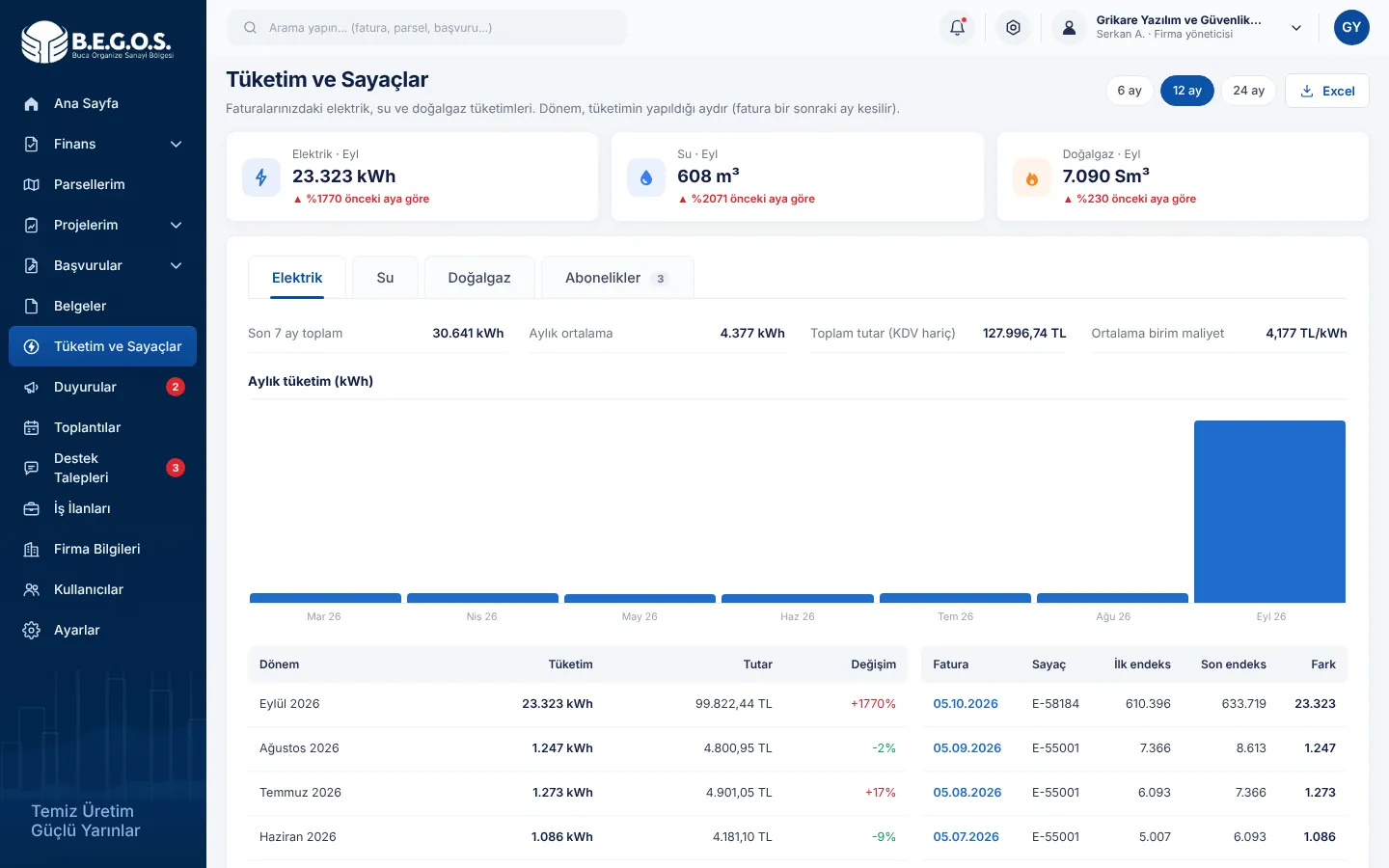 12
- 1
Choose a period (6, 12, 24 months) and download the table as Excel.
- 2
Latest consumption for electricity, water and gas with the change over the previous period. Tabs show monthly charts, meters and subscriptions.
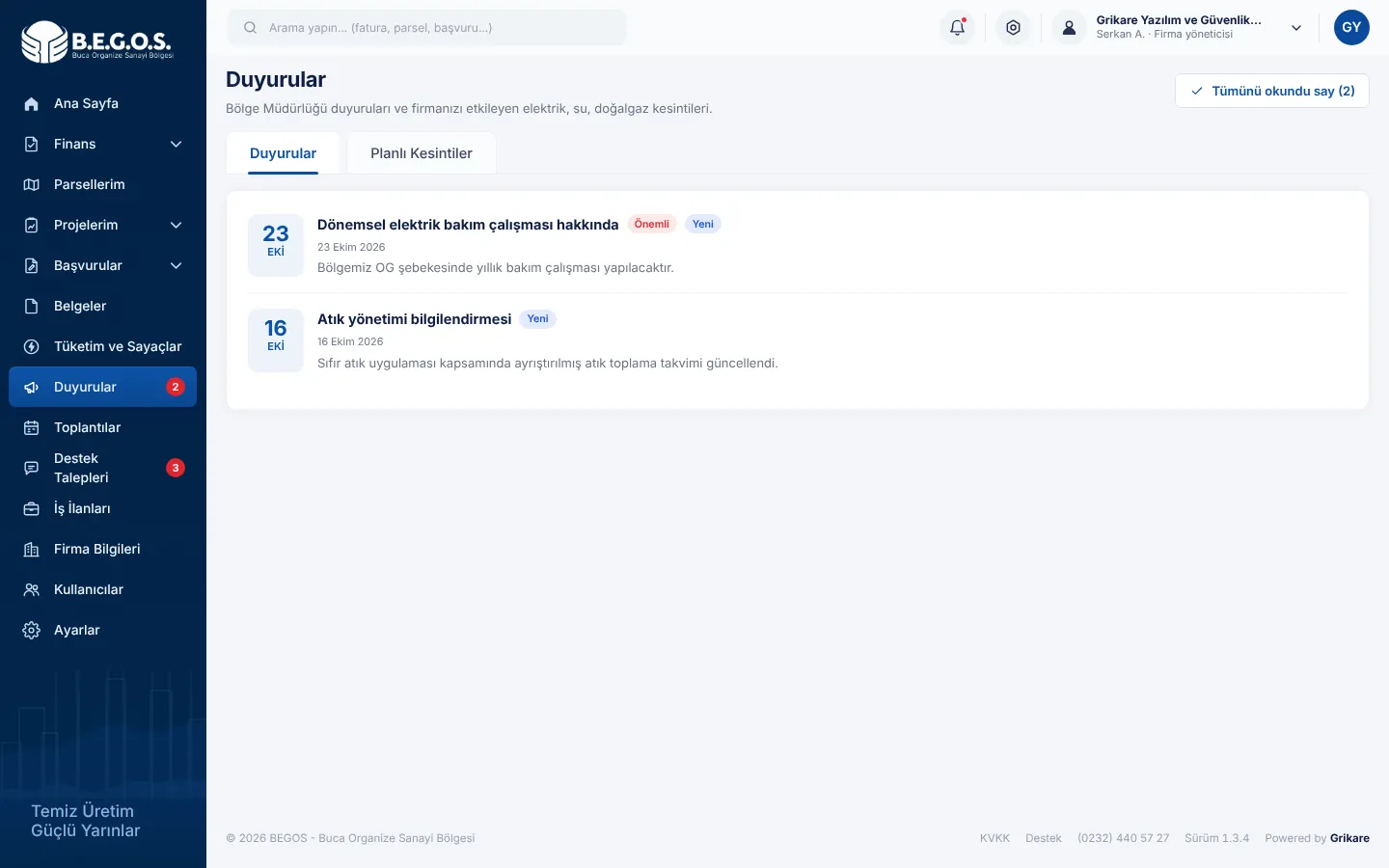 12
- 1
Announcements and planned outages have separate tabs.
- 2
Mark all unread announcements as read in one click.
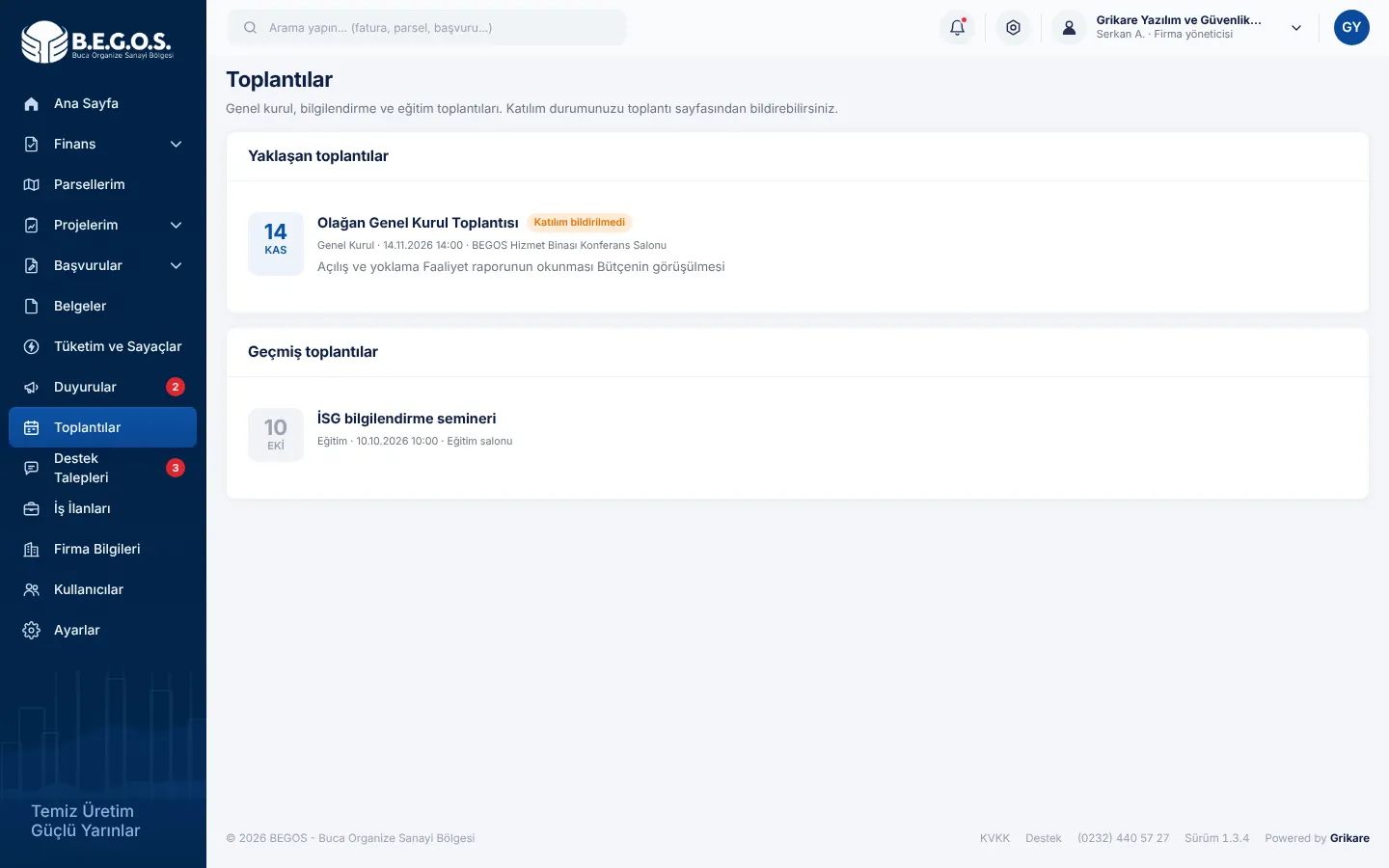 1
- 1
Upcoming general assemblies and briefings; open a meeting to confirm attendance.
Job postings
You can publish job postings for your company. After approval by the Zone Directorate they appear on our Careers page and you follow applications in the portal.
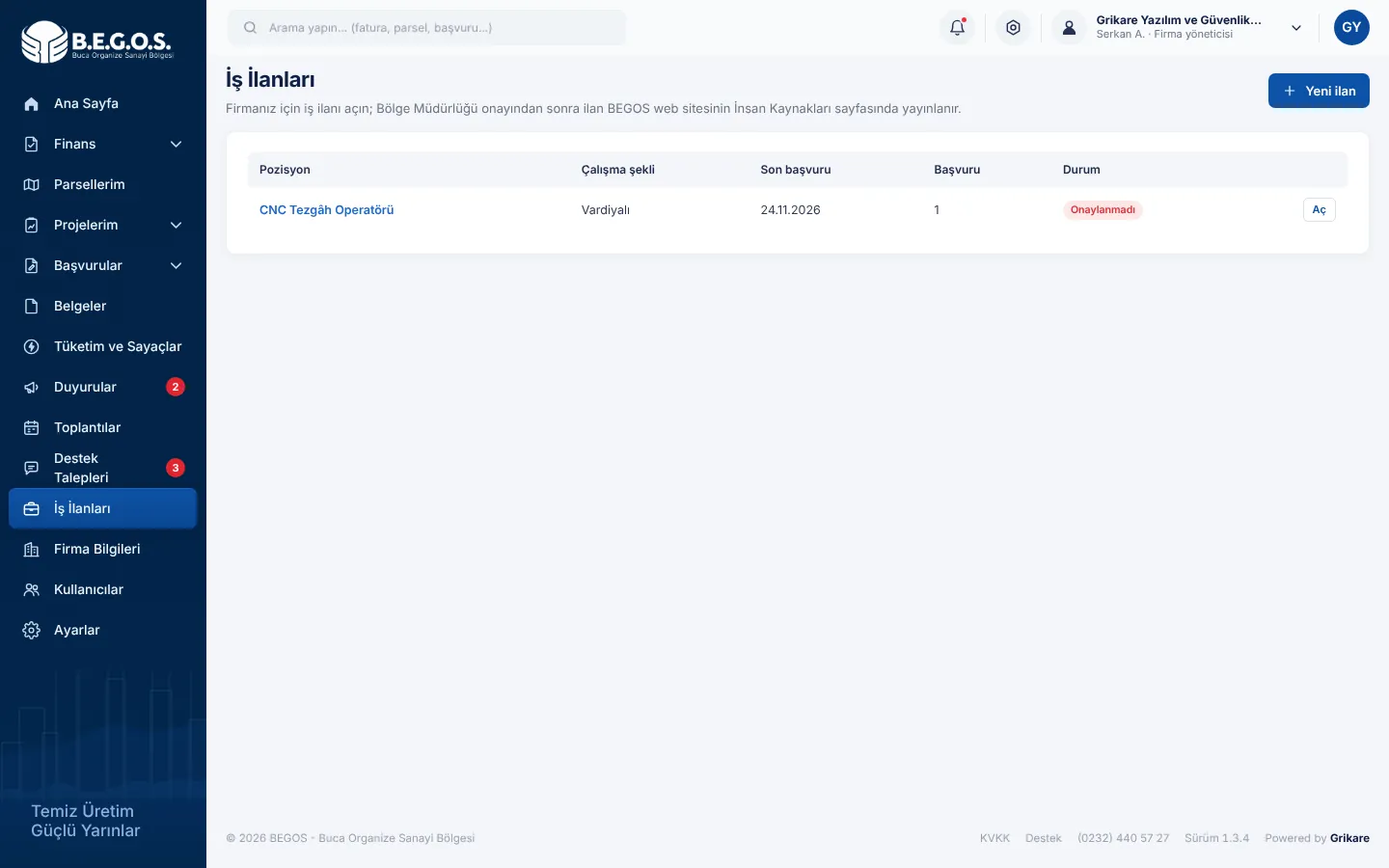 12
- 1
Create a new posting.
- 2
Posting row: approval status, closing date and number of applications. Open it to see candidates and CVs.
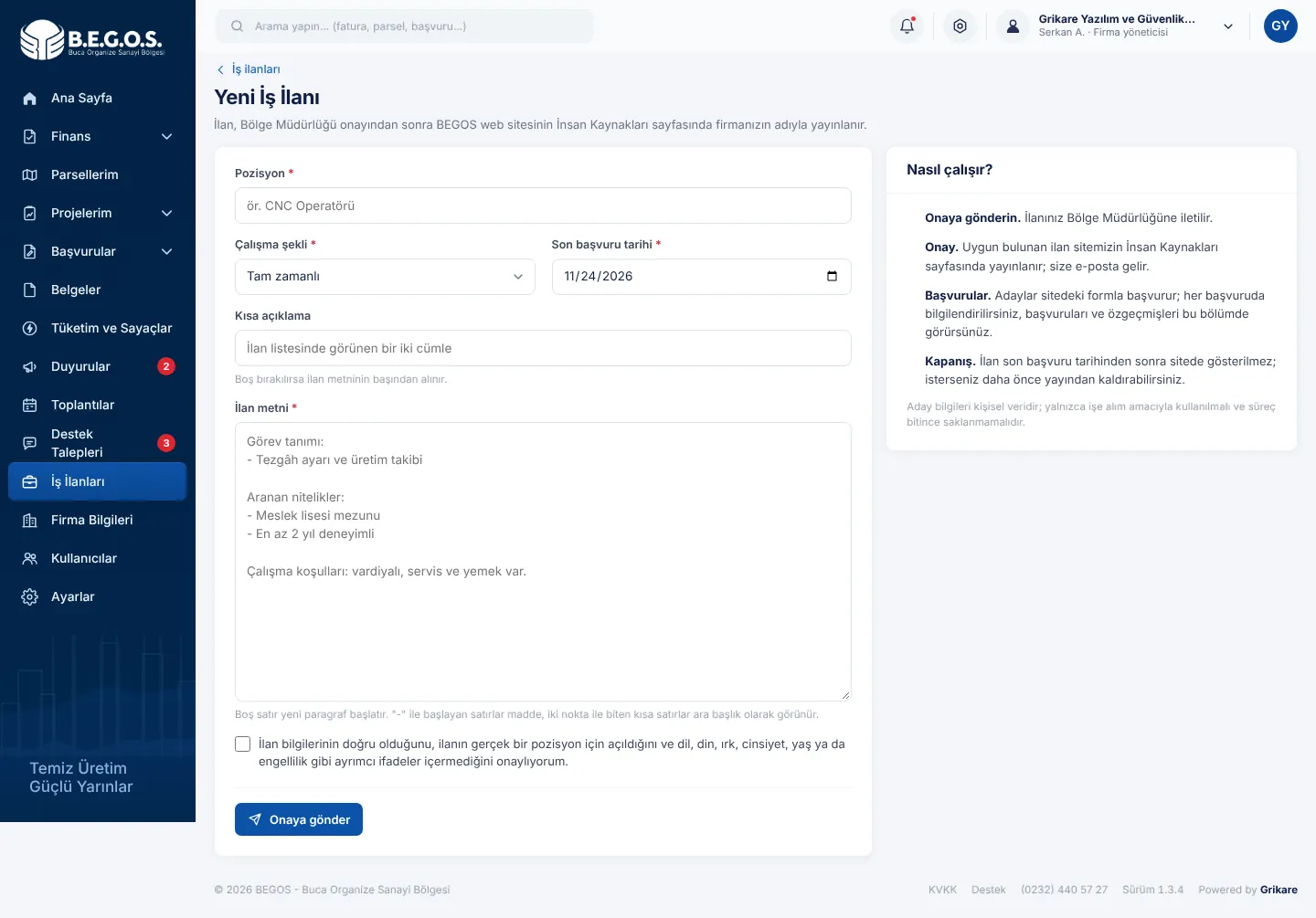 123
- 1
Enter the position and a short summary.
- 2
Use headings such as "Görevler:" and lines starting with "-" in the text; they become tidy lists on the website.
- 3
Confirm the declaration and submit. Approval or change requests are e-mailed to you.
Company details and users
The company administrator requests updates to company details and creates users with access only to the sections they need.
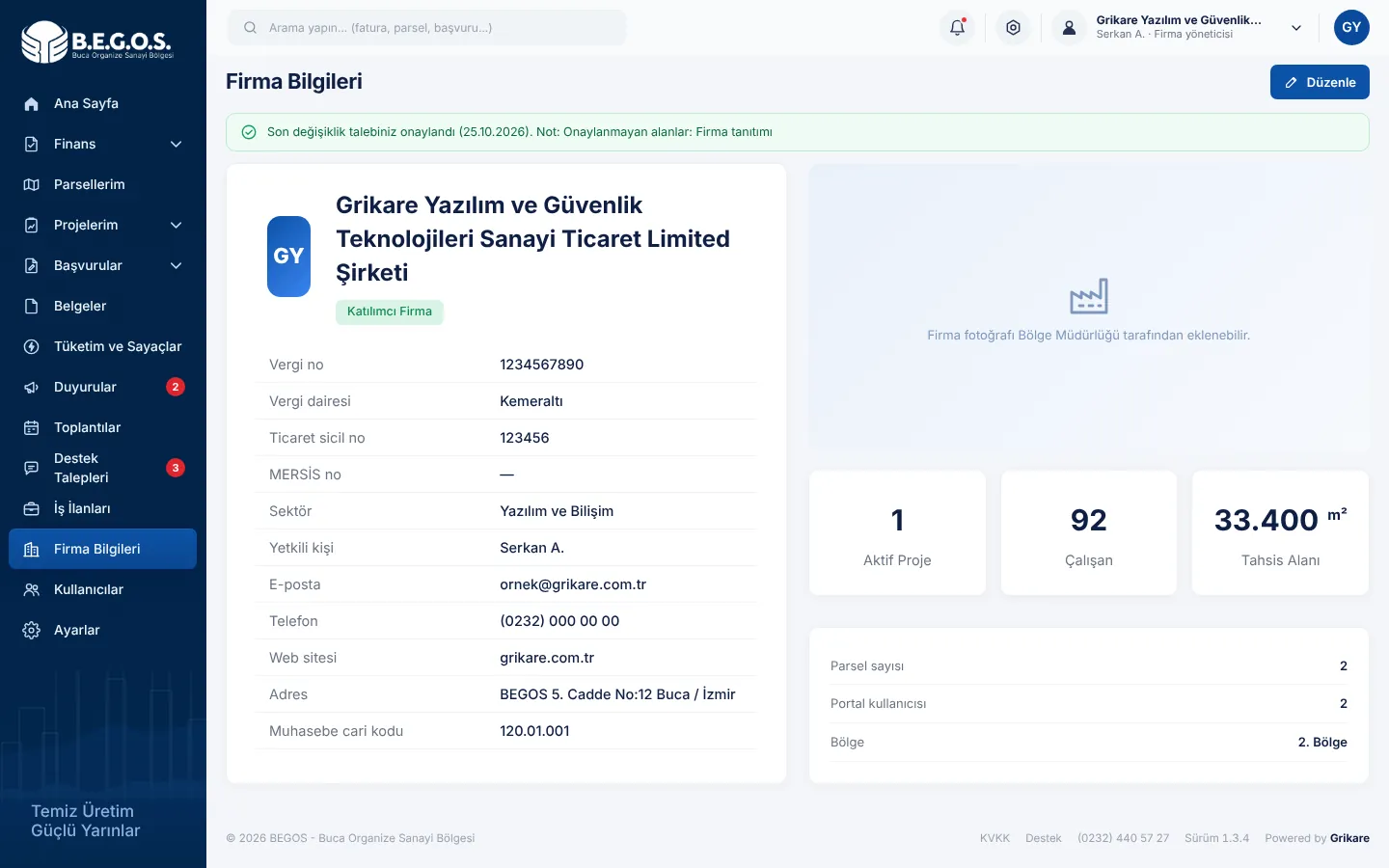 1
- 1
Use "Düzenle" to request changes to address, contact and representative details; they are updated after approval.
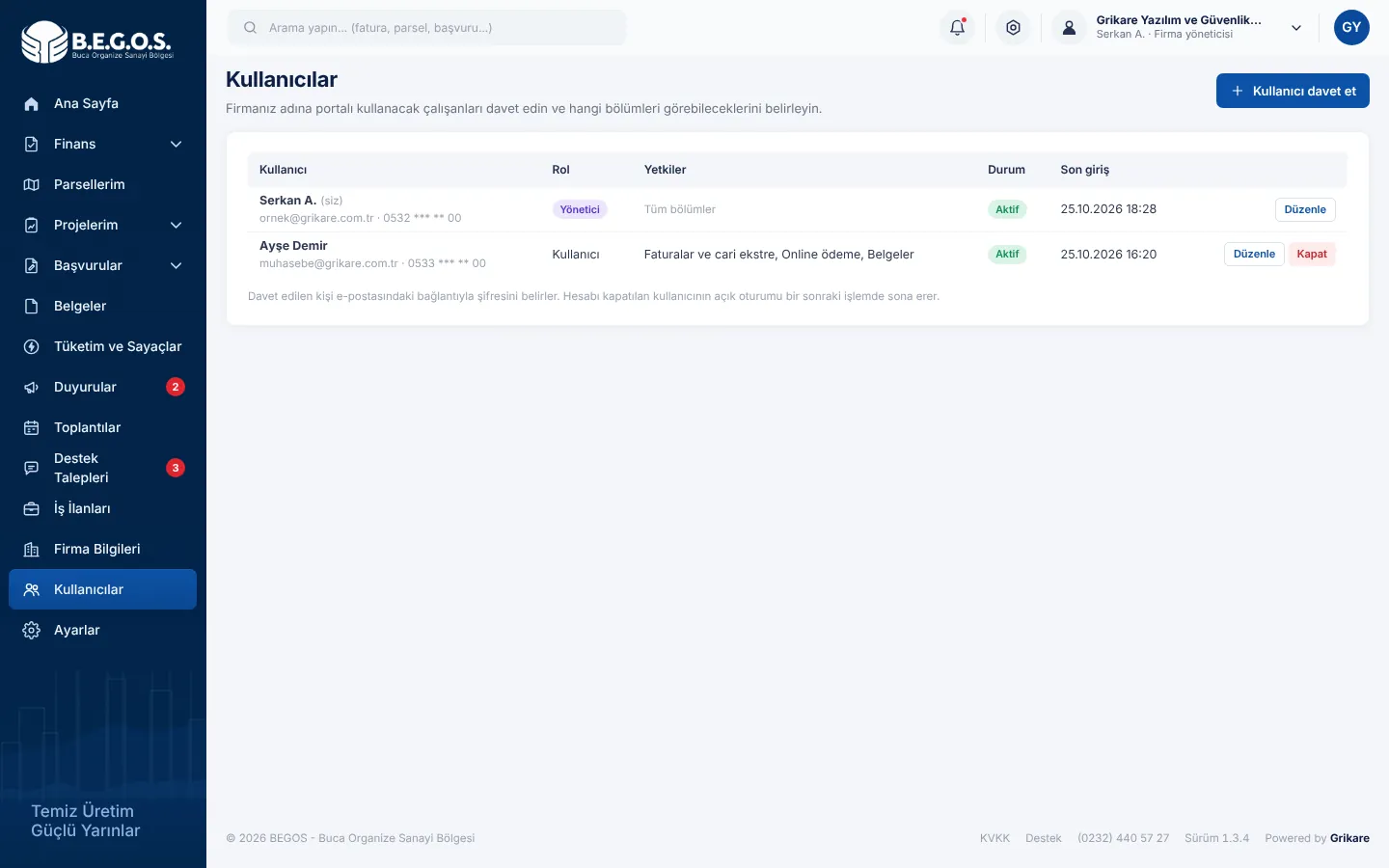 12
- 1
"Kullanıcı davet et": an invitation is sent to your employee's e-mail.
- 2
"Düzenle": set permissions (e.g. invoices and payments only for accounting staff) or deactivate the account.
Account settings and security
Manage your profile, password and notification preferences, and protect your account with two-step verification.
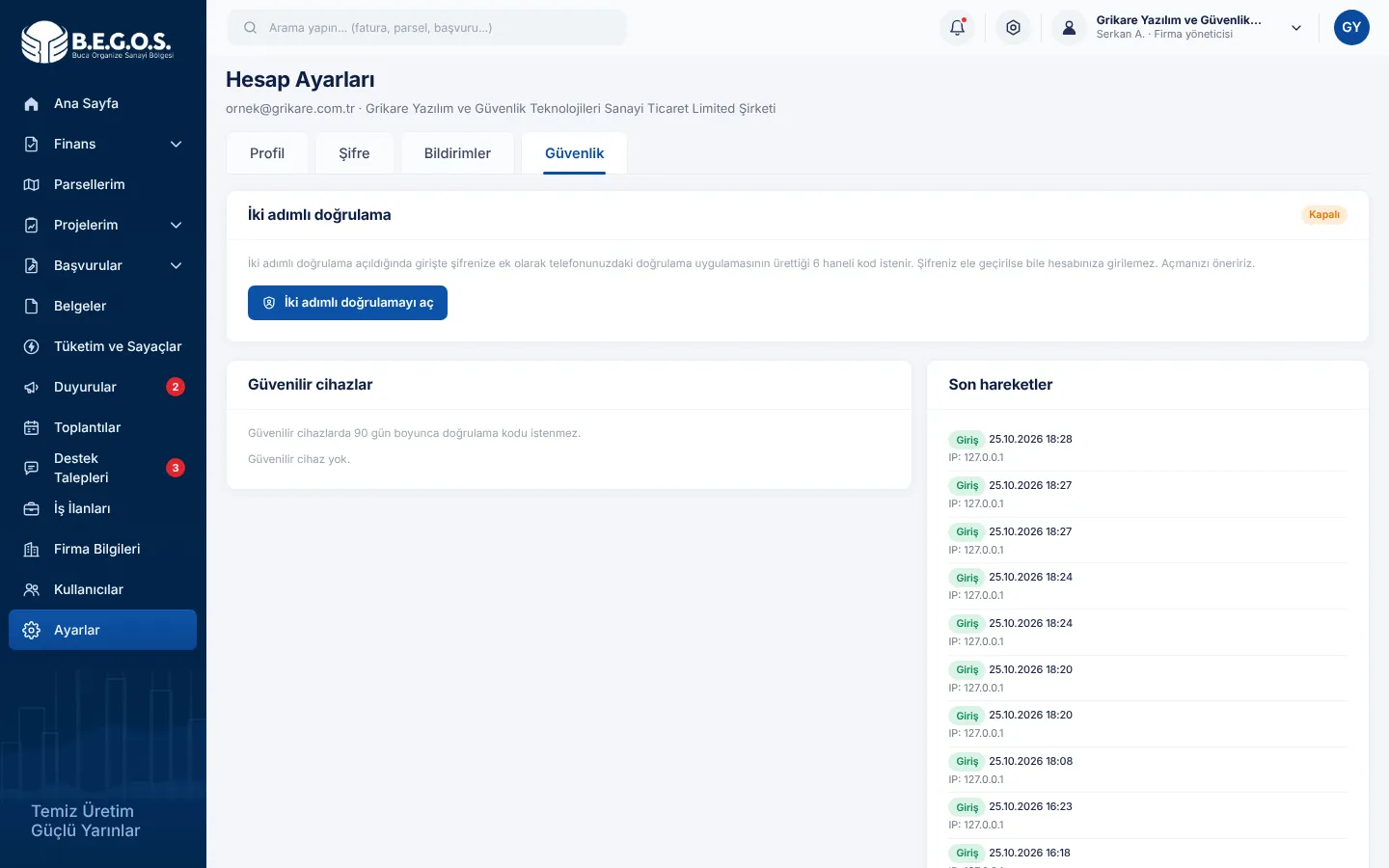 12
- 1
Profile, Password, Notifications and Security tabs.
- 2
Two-step verification: scan the QR code with an authenticator app (Google Authenticator, Microsoft Authenticator etc.) and enter the code. Keep the backup codes somewhere safe.
If you lose your phone, sign in with a backup code or ask the Zone Directorate to reset your two-step verification.
On your phone
The portal works on phones and tablets without an app. Open the portal in your browser and add it to your home screen if you like.
- 1
Use the menu button to reach every section.
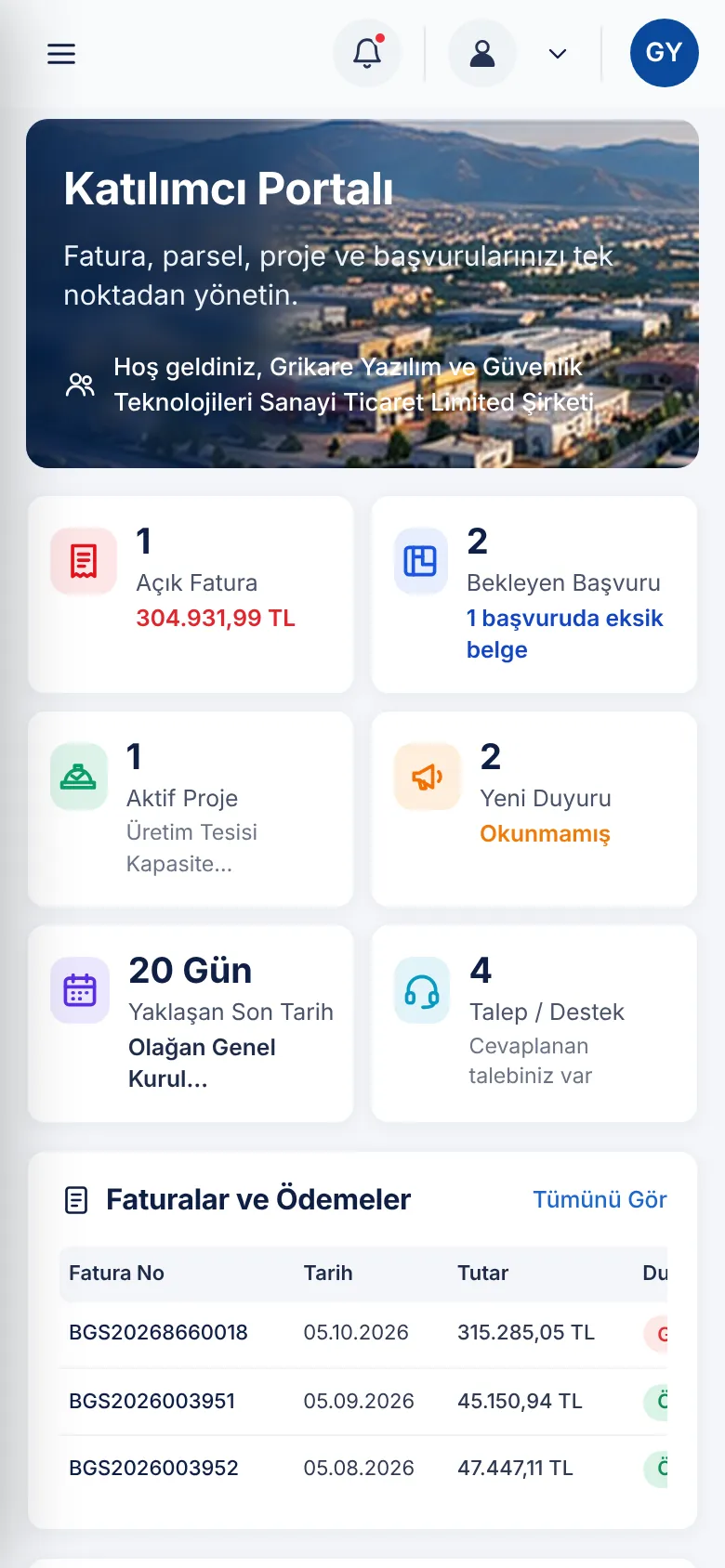 1
Frequently asked questions
How do I get a portal account?
Your company representative applies to the Zone Directorate with an e-mail address and mobile number. You then receive an invitation e-mail to set your password.
When is my payment deducted?
Card payments are deducted immediately. Bank transfers appear once accounting records them.
Are my card details stored?
No. Card details never reach or stay on BEGOS servers; payment is completed on the bank's 3D Secure page.
Why can't I create a no-debt letter?
The letter is issued only when there is no outstanding balance. Pay your balance and create it right away.
Can I create users for my employees?
Yes. The company administrator invites users on the Users page and sets each user's permissions.
Who replied to my request and how do I reach them?
Each reply is signed with the staff member's name, title, unit, phone and e-mail.
Need help?
Contact our Zone Directorate with any questions about the portal.